Proxy
Residential proxy FAQ
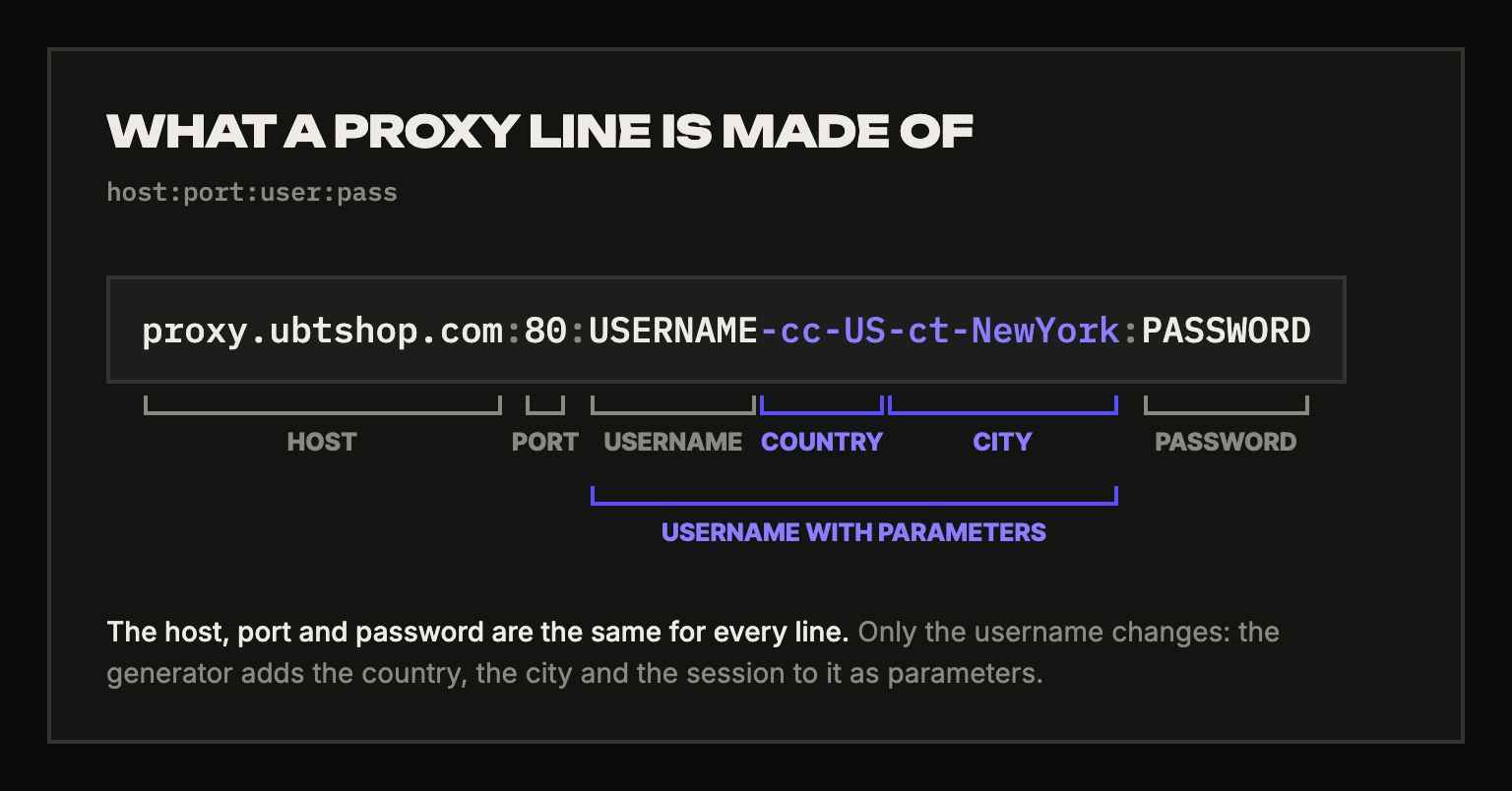
What residential proxies are and what they are for
They are IP addresses of home internet providers: websites see a regular user, not a data center. You pay for gigabytes of traffic from the same balance as your other purchases.
How to buy proxies
- Sign up and sign in.
- Top up your balance: in "Balance", click "Top up balance", enter the amount in USD, choose the coin and network and go to payment.
- Open "Proxies" in the site header, enter how many GB you need under "Buy GB" and click "Buy".
After the purchase the page scrolls to "Traffic" and "Access" by itself: your GB, username and password are there.
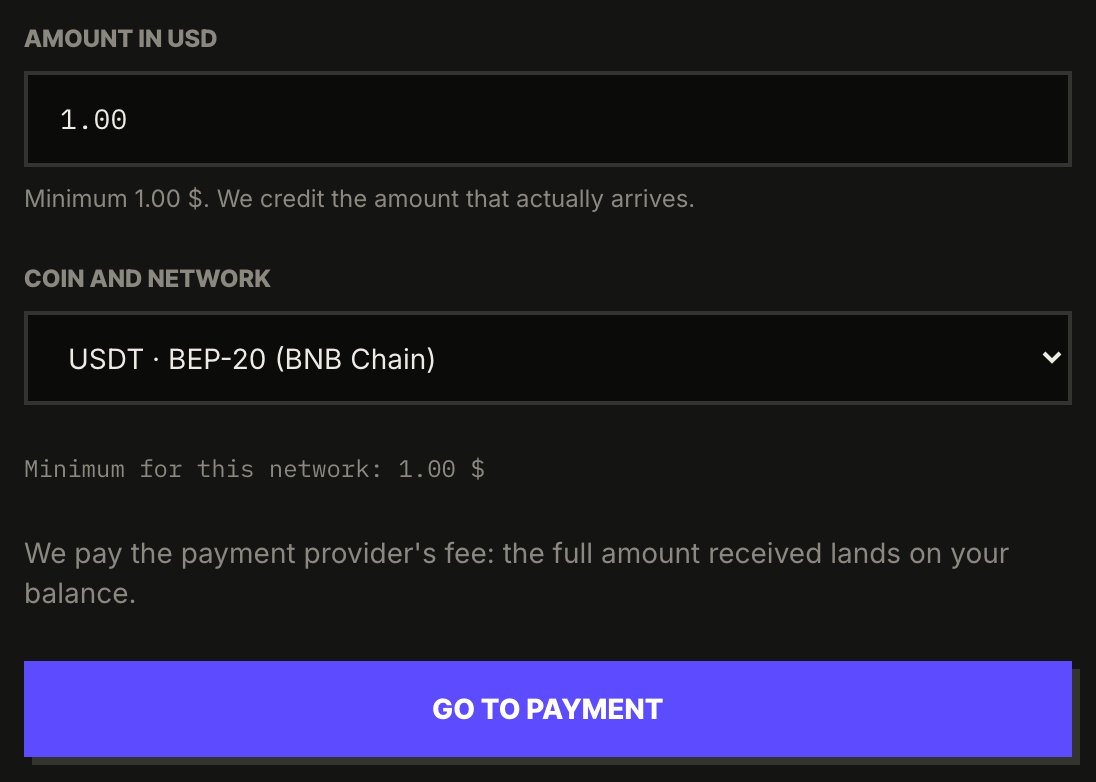
The minimum amount for the selected network is shown in the form before payment. We pay the payment provider's fee: the full amount received lands on your balance.
How traffic is counted and whether GB expire
You pay per gigabyte of traffic, with no subscription. GB never expire: no validity period, no renewals, no automatic charges. Each new purchase adds GB to the ones you already have. When your GB run out, the proxies stop working.
How much proxies cost
The price per GB is on the "Proxies" page: https://ubtshop.com/en/proxies
Where to find the username, password, host and port
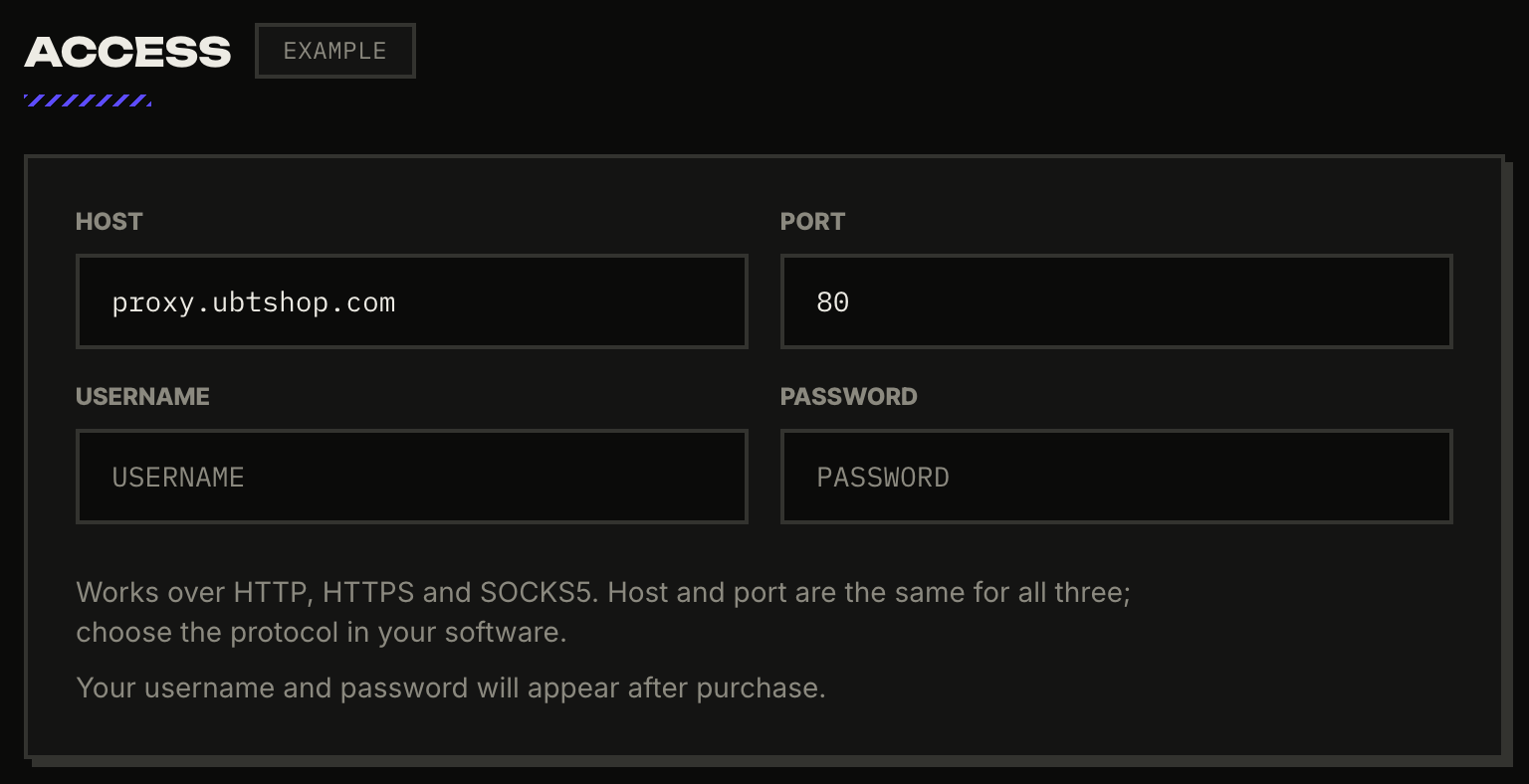
After the purchase they are in "Access" on the "Proxies" page. The host is proxy.ubtshop.com, the port is 80.
The username and password work right away, with no country targeting. To pick a country or a city, or to keep one IP, build lines in the generator: the host, port and password stay the same, only the username changes.
Which protocols are supported
Works over HTTP, HTTPS and SOCKS5: host and port are the same for all three, and you choose the protocol in your software. The username and password are the same too. The generator has ready-made lines in both notations: http://user:pass@host:port and socks5://user:pass@host:port.
How to choose a country and a city
In "Line generator", pick a country from the list and type the city in Latin letters, without spaces: NewYork, SaoPaulo. You can add a region: a state or region code of up to 3 characters, such as CA, NY, TX. The parameters go into the username; the host, port and password do not change.
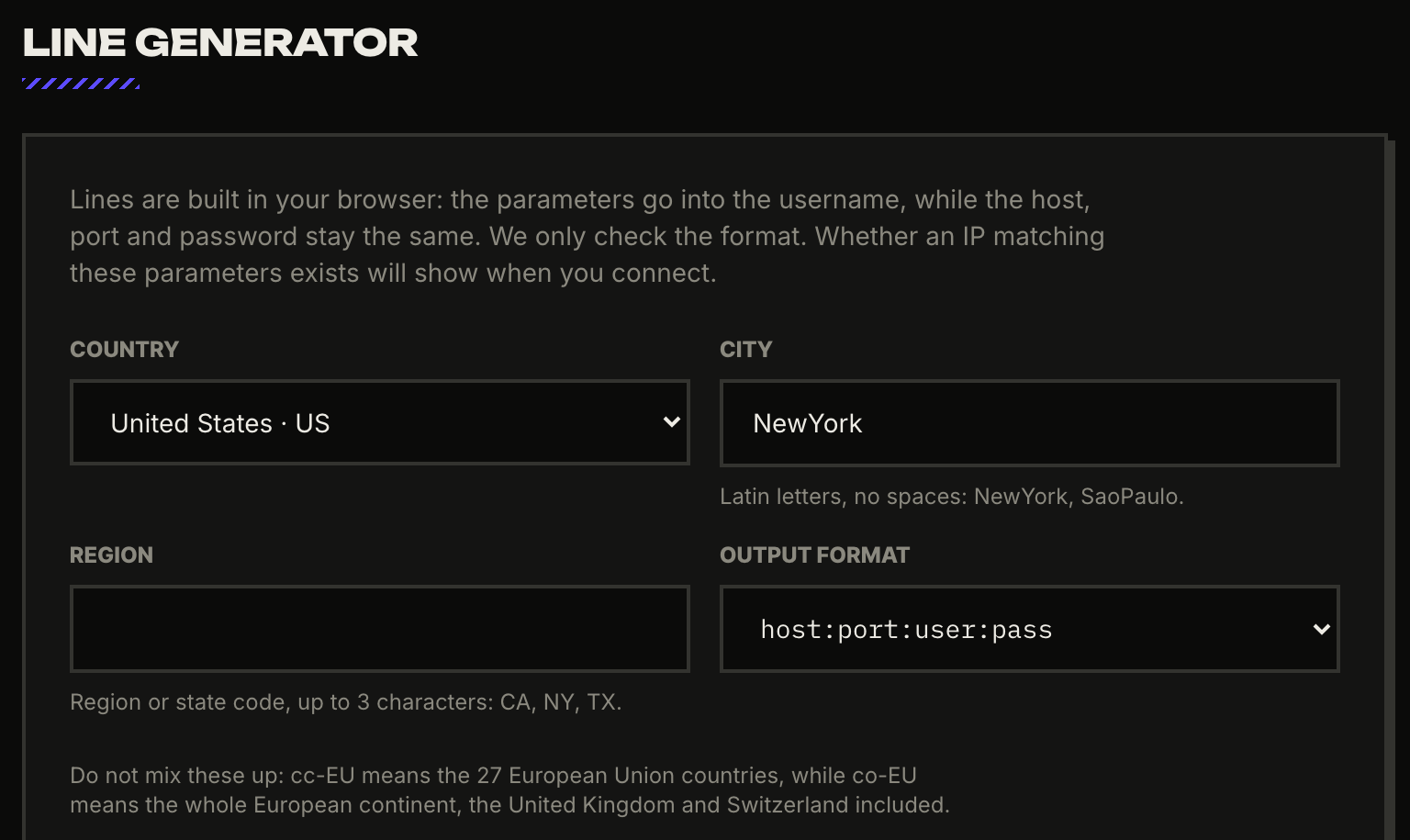
The generator only checks the format. Whether an IP matching these parameters exists will show when you connect: if there is no matching address right now, the connection will fail.
Do not mix these up: cc-EU means the 27 European Union countries, while co-EU means the whole European continent, the United Kingdom and Switzerland included. The collapsed "Precise targeting" block also has continent, postal code, internet provider, ASN, time zone, DMA, GeoNames id and a radius around a point.
Rotating or sticky IP
- "Rotate the IP on every request": the IP changes by itself, so one line is enough.
- "Keep one IP": every line gets its own label, that is, its own pinned address. The session lifetime is set in seconds, from 1 to 21600.
The session label prefix is optional, up to 16 characters: it is handy for recognising your own sessions, and the generator adds the rest.
Which format to paste into your software
The "Output format" field has five options:
- host:port:user:pass is the default, and antidetect browsers and other tools ask for it most often;
- user:pass@host:port;
- http://user:pass@host:port;
- socks5://user:pass@host:port;
- curl command to test it.
This is the default line with the country set to the USA and the city to New York:
proxy.ubtshop.com:80:USERNAME-cc-US-ct-NewYork:PASSWORD
Enter how many lines you need, from 1 to 10,000, and click "Copy all lines" or "Download .txt".
How to check that the proxy works
In the generator, choose the "curl command to test it" format, copy the line and run it in a terminal. It looks like this:
curl -x "http://USERNAME:PASSWORD@proxy.ubtshop.com:80" "https://api.ipify.org?format=json"
The response is the IP that websites see you from. The check goes through the proxy and uses your traffic.
What "Rotate credentials" does and when you need it
The button issues a new username and password. Use it if your username and password have fallen into the wrong hands or stopped working. Your purchased GB and usage are kept, and nothing is charged.
The old username and password stop working within a minute. Lines already pasted into your software will have to be replaced: build them again in the generator.
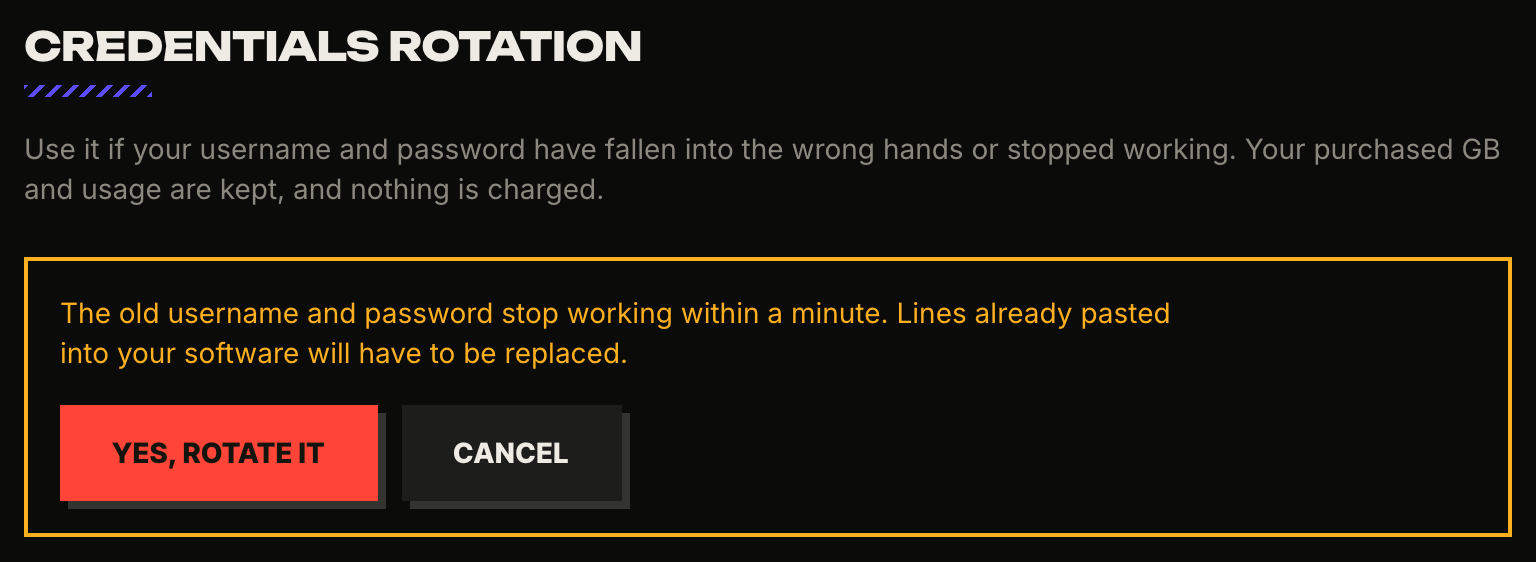
You can rotate credentials no more than three times an hour. While a GB purchase is in progress, rotation is unavailable.
What to do if the GB have not arrived
If a purchase shows "Processing", the confirmation is delayed. We will check and either deliver the GB or return the money to your balance. This usually takes 10–15 minutes.
The status of every purchase is shown in "History" on the "Proxies" page. If you still have a question, click "Ask about this purchase" in the purchase row: the request will be linked to it right away.
What to do if the proxy does not work
- Check the host and port: proxy.ubtshop.com and 80.
- Check the remaining traffic in "Traffic": when your GB run out, the proxies stop working.
- Try the username and password from "Access" without parameters. If that works but the line from the generator does not, most likely there is no IP for the chosen parameters right now: remove the city or the precise targeting.
- Check the line with the curl command from the generator.
- If the username and password stopped working, click "Rotate credentials".
Still not working? Create a request in "Support" in your account or message support on Telegram.